
Build Your Own Local AI Automation Hub with n8n + Ollama (No Cloud Required!)

If you've been playing with local LLMs and you're already a fan of automation tools like n8n, you're in for a treat. Today, we'll connect n8n to your local Ollama instance (with Open WebUI) using Docker Compose.
The result? Automated AI workflows you run entirely from the comfort of your own machine — no cloud subscription, no per-token invoice showing up like an uninvited houseguest, no “service degraded” banner because someone else's GPU cluster had a bad day.
We'll go step-by-step:
- Prerequisites — making sure Docker is ready to go.
- GPU considerations — running Ollama efficiently on your hardware.
- Docker Compose setup for both n8n and Ollama (with Open WebUI).
- Starting the containers with
docker compose up -d. - Pulling an LLM model into Ollama (and actually picking the right one this time).
- Configuring n8n to talk to Ollama's API.
- Troubleshooting — resolving API connection issues.
- Use cases & practical examples — what you can automate today.
- Architecture diagram — how the components connect.
- n8n sample AI integration.
Prerequisites
Before we start, make sure Docker is installed and working:
- Linux → Install Docker Engine following the official guide. After installation, verify with:
- Windows → Install Docker Desktop. Ensure it's running and WSL2 integration is enabled.
docker --version
docker compose version
Once Docker is up and running, we can build the automation stack.
GPU Considerations
Ollama can use your system's GPU to accelerate model inference — this makes a huge difference in performance, the kind of difference that turns “go make coffee while it thinks” into “blink and it's already answered.”
- NVIDIA GPUs → Supported out-of-the-box in the Docker container if you have the NVIDIA Container Toolkit installed.
- AMD GPUs → The official Docker image still leans NVIDIA-first, but you can use AMD cards via the standalone Ollama desktop application, which detects and drives AMD hardware directly — and you can still point n8n at it over the same API.
When using the desktop app, try connecting from n8n to:
http://localhost:11434If that doesn't resolve from inside a Docker container, use:
http://host.docker.internal:11434host.docker.internal is the special DNS name that lets containers talk to services running on the host machine — genuinely one of Docker's more thoughtful conveniences.
If you have no GPU, Ollama still runs on CPU — just budget for “thoughtful pauses” instead of instant replies.
Setting Up the Docker Compose Files
We'll use two stacks — one for n8n, one for Ollama + Open WebUI. Adjust the TZ value to your own time zone.
n8n Docker Compose
services:
  n8n:
    image: n8nio/n8n:latest
    container_name: n8n
    ports:
      - "5678:5678"
    environment:
      - TZ=America/Los_Angeles
      - GENERIC_TIMEZONE=America/Los_Angeles
      - N8N_BASIC_AUTH_ACTIVE=true
      - N8N_BASIC_AUTH_USER=admin
      - N8N_BASIC_AUTH_PASSWORD=changeme
    volumes:
      - n8n_data:/home/node/.n8n
    restart: unless-stopped

volumes:
  n8n_data:
Ollama + Open WebUI Docker Compose
services:
  ollama:
    image: ollama/ollama:latest
    container_name: ollama
    ports:
      - "11434:11434"
    volumes:
      - ollama_data:/root/.ollama
    restart: unless-stopped

  open-webui:
    image: ghcr.io/open-webui/open-webui:main
    container_name: open-webui
    ports:
      - "3000:8080"
    environment:
      - OLLAMA_BASE_URL=http://ollama:11434
    depends_on:
      - ollama
    restart: unless-stopped

volumes:
  ollama_data:
Bringing Containers Up
Once you've saved the files (docker-compose.n8n.yml and docker-compose.ollama.yml, for example), spin them up:
docker compose -f docker-compose.n8n.yml up -d
docker compose -f docker-compose.ollama.yml up -d
You should now have:
- n8n on
http://localhost:5678 - Open WebUI on
http://localhost:3000 - Ollama API on
http://localhost:11434
Downloading an LLM Model — and Surviving the Model Wars
Ollama ships without models by default, which is the correct choice, because the local-LLM landscape currently moves at a pace that would make last year's “definitive model comparison table” look like a museum exhibit. Genuinely, since I first wrote about this setup, the entire lineup has turned over — Llama 3.1, the old reliable, has been quietly lapped by newer releases from basically every major lab at once. Nobody is sitting still. Everybody wants to be the model running on your fridge.
Here's the current cast of characters actually worth pulling down, current as of this update:
| Model | Strengths | Weaknesses | Best Use Cases |
|---|---|---|---|
| Gemma4 (Google) | Reasoning built in with configurable "thinking modes," genuinely strong coding and math scores, multimodal (text/image/audio) on the smaller variants, edge-sized options (E2B/E4B) built specifically for laptops | The bigger workstation variants (26B MoE, 31B dense) still want real hardware to feel fast | General-purpose local assistant, coding help, anything where you also want image input without switching models |
| Qwen3.5 (Alibaba) | Absurd size range (0.8B all the way to 397B), 201 languages supported, strong agent/tool-use behavior, genuinely fast MoE architecture | With that many sizes available, picking the "right" one for your hardware takes an extra minute of label-reading | Multilingual work, translation, agent-style workflows that need to call tools |
| DeepSeek-R1 (distilled) | Reasoning-first design, and the distilled small variants (1.5B, 7B, 8B, 14B) genuinely retain a shocking amount of the big model's reasoning quality | The full 671B flagship is a 404GB monster that has no business anywhere near consumer hardware — stick to the distilled sizes unless you own a small data center | Step-by-step reasoning, math, logic-heavy prompts, anywhere you want the model to "show its work" |
| Llama 3.3 / 3.2 (Meta) | Still the incumbent for a reason — 3.3's 70B variant reportedly matches 3.1's 405B, and 3.2 has genuinely tiny 1B/3B variants for very constrained hardware | Meta's release cadence has slowed relative to the others, so it's no longer automatically "the newest thing" | Solid, well-documented general-purpose baseline, or the smallest possible footprint via 3.2's tiny variants |
Pull whichever one matches your hardware and your patience level:
docker exec -it ollama ollama pull llama3.1:8bSwap llama3.1:8b for gemma4:e4b, qwen3.5:4b, deepseek-r1:8b, or anything listed at ollama.com/library — the library itself is worth browsing occasionally just to see who's shipped what lately, the way you'd check a leaderboard.
You can install multiple models side by side and switch between them in n8n depending on the task — ideal for hybrid automation workflows, and also a great way to discover that “best” is almost always “best at this one specific thing,” not a universal crown.
Connecting n8n to Ollama's API
With Ollama running, you can access its REST API at:
http://localhost:11434Example n8n HTTP Request node:
- Method:
POST - URL:
http://ollama:11434/api/generate - Headers:
Content-Type: application/json
Body:
{
  "model": "llama3.1:8b",
  "prompt": "Write a haiku about local AI automation"
}
Troubleshooting: Ollama API Not Resolving in n8n
Sometimes when running both n8n and Ollama in Docker, API calls from n8n fail with a connection error like:
Error: connect ECONNREFUSEDThis usually means the container can't resolve http://ollama:11434 by name.
Quick Fix:
- First, try:
http://localhost:114342. If that doesn't work from inside a container, switch to:
http://host.docker.internal:11434host.docker.internal is a special DNS name that resolves to your Docker host machine, letting containers talk to services running outside their own network.
Use Cases & Practical Examples
n8n isn't just an automation platform — it's the glue that connects virtually any API, database, or service to your AI workflows. Paired with Ollama, you get local AI power for text generation, translation, summarization, and decision-making, all without a single API key that could be revoked, rate-limited, or quietly re-priced overnight.
| Use Case | How n8n Helps | AI's Role |
|---|---|---|
| Content Summarization | Pull long-form content from RSS feeds, newsletters, or APIs. | Use LLM to generate concise, shareable summaries. |
| Customer Support Automation | Listen to support tickets from email or helpdesk APIs. | Use LLM to draft responses or classify priority. |
| Data Enrichment | Gather structured data from a CRM or database. | LLM adds missing details or formats it into reports. |
| Language Translation | Pull multilingual content from APIs. | LLM translates into the target language. |
| Idea Generation | Trigger workflows from a form submission. | LLM generates brainstorm ideas, drafts, or outlines. |
Practical Example: Video Game RSS Translation & Social Publishing
Let's say you run a multilingual gaming news account and want to automate your content posting. Here's the workflow:
- RSS Trigger — n8n monitors an RSS feed from a popular video game site.
- Fetch & Parse Content — the RSS data (title, link, description) is parsed in n8n.
- Translate via Ollama — n8n sends the article text to Ollama running a strong multilingual model (Qwen3.5 is the obvious pick here) for high-quality translation.
- Format for Social Media — trim content to platform limits and add hashtags.
- Multi-Platform Publish — post to Twitter/X, Facebook, and Mastodon.
Architecture Diagram
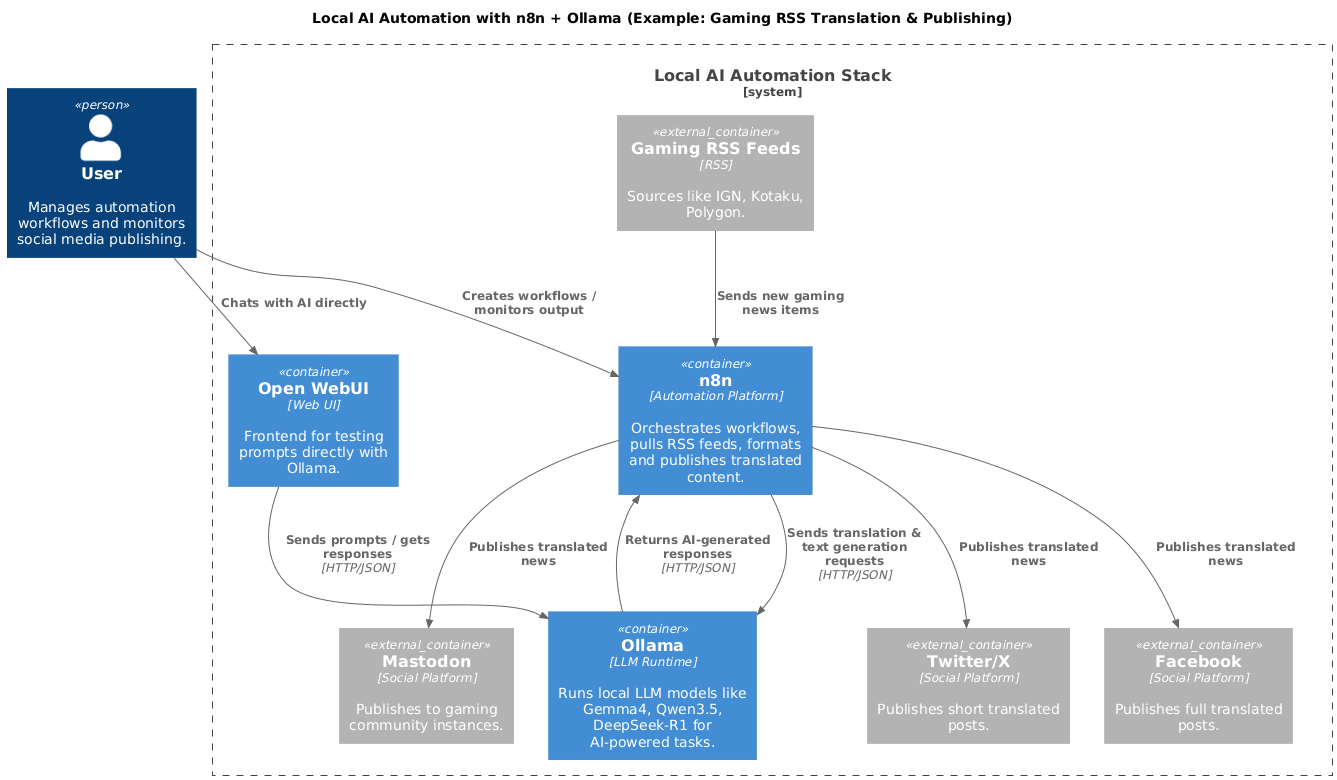
Let's build the actual workflow. Open a browser and go to http://localhost:5678/.
The first time, n8n will ask you to register and enter a key — don't worry, it's free.
From there: create a new workflow, add a manual trigger (you'll quickly discover how easy it is to swap in a timer, webhook, or Telegram trigger later), then click the plus sign and add an RSS Feed node. I'm using Kotaku's RSS feed for this example. Execute that step and you'll see the raw feed response come back.
Since we only want the freshest news, add a Limit node set to the top 3 items.
Now for the fun part: the Ollama Chat Model node. Create a new credential, and — surprise, surprise — you need to enter the API URL. If saving the credential throws an error, that's your cue to jump back to the Troubleshooting section above.
With the credential wired up, configure the translation step: pull the field you want translated (the encoded snippet from the RSS node) via drag-and-drop, and write a prompt — something as simple as “Translate the following text to Spanish:” followed by the snippet.
And yes, it actually translates. But that's just the boring, expected use of the prompt field — you can just as easily ask it to summarize, rewrite in a completely different tone, fact-check a claim against what it already knows, or add extra context. It's a local instance, so it's not plugged into the live internet and won't know this morning's news, but it's plenty capable for real, useful tasks that don't require up-to-the-minute knowledge.
Execute the node, and — CPU or GPU, whichever you've got — you'll watch it actually think for a moment before the translated text comes back.
This is a small example, but you can already see where the possibilities go from here.
Wrap-Up
With this setup:
n8n orchestrates your automation. It's a workflow automation platform that lets you connect APIs, databases, and services visually — similar to Zapier or Make, but open-source and self-hostable, which means nobody can quietly change the pricing tier on you at renewal time.
Ollama runs LLMs locally — fast, private, and internet-optional. It's a local AI runtime that lets you download and run models like Gemma4, Qwen3.5, DeepSeek-R1, or Llama directly on your own machine, with optional GPU acceleration, and without your prompts ever leaving the building.
Open WebUI gives you a friendly chat interface for testing prompts directly, no n8n workflow required.
No API limits. No billing surprises. No “this model has been deprecated, please migrate by Friday” emails. Just local power, and the very particular satisfaction of watching your own hardware do the work.
Next post, I'll show you how to build an AI agent with MCP — and maybe, just maybe, an MCP C# server with a sample API, so the agent can actually learn to consume and automate my own API. Stakes: unknown. Enthusiasm: extremely high.
Happy coding!!!